Introduction
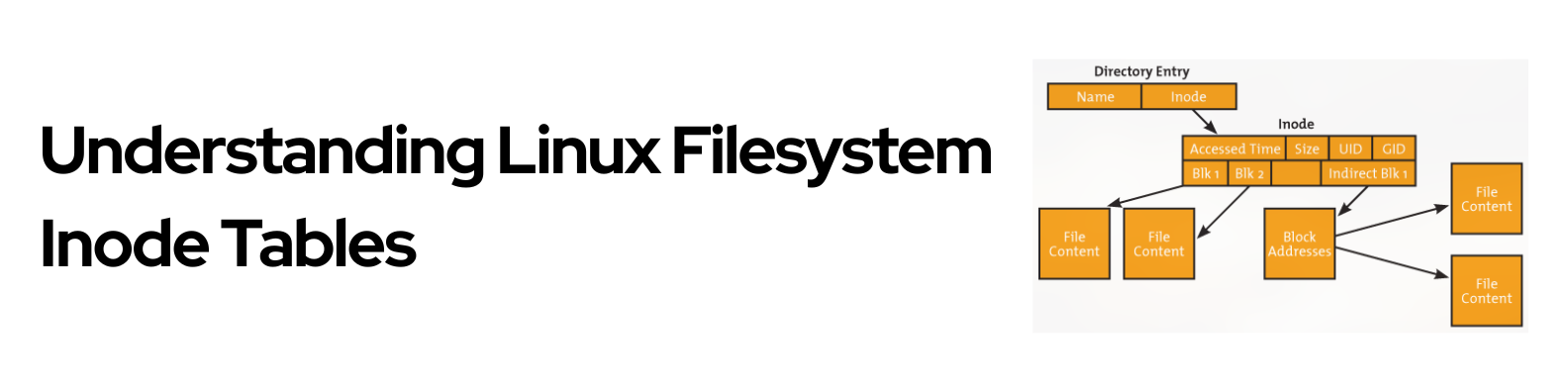
The inode table is one of the most fundamental data structures in Linux filesystems, yet it remains mysterious to many users. An inode, short for index node, is essentially a data structure that stores all the metadata about a file or directory except for two crucial pieces of information: the filename itself and the actual file content. This separation of concerns is what makes Unix-like filesystems elegant and efficient.
When you create a filesystem in Linux, a specific portion of the disk is reserved for the inode table. This table is essentially a fixed-size array of inodes, with each inode containing detailed metadata about a file. The number of inodes is determined when the filesystem is created, based on factors like the filesystem size and expected usage patterns. This means you can theoretically run out of inodes even if you have plenty of disk space left, which happens when you create too many small files.
Practical Example:
# Check inode usage on your system
$ df -i
Filesystem      Inodes  IUsed   IFree IUse% Mounted on
/dev/sda1      6553600 450000 6103600    7% /
/dev/sdb1       524288  45000  479288    9% /home

# View inode numbers for files
$ ls -i /etc/passwd
1234567 /etc/passwd
What an Inode Contains
Each inode is roughly 256 bytes in size and contains a wealth of information about a file. It stores the file type, whether it’s a regular file, directory, symbolic link, or device file. The permission bits are stored here, including the read, write, and execute permissions for the owner, group, and others, along with special bits like setuid, setgid, and the sticky bit. Ownership information is tracked through user ID and group ID fields.
Timestamps are a critical part of the inode. Every file has an access time that records when it was last read, a modification time that shows when the content changed, and a change time that updates whenever the inode metadata itself changes. Modern filesystems like ext4 also support a birth time that records when the file was originally created. The inode also maintains a link count, which tracks how many directory entries point to this particular inode. When this count drops to zero, the filesystem knows it can safely reclaim the space.
The most complex part of an inode is how it stores references to the actual data blocks on disk. Traditional ext filesystems use a clever hierarchical scheme with twelve direct pointers that point straight to data blocks, perfect for small files. For larger files, there’s an indirect pointer that points to a block full of pointers, effectively extending the file’s capacity. Even larger files use double indirect and triple indirect pointers, creating a tree structure that can address massive amounts of data while keeping small files efficient.
Practical Example:
# Use stat to see all inode information
$ stat /etc/passwd
  File: /etc/passwd
  Size: 2847          Blocks: 8          IO Block: 4096   regular file
Device: 803h/2051d    Inode: 1234567     Links: 1
Access: (0644/-rw-r--r--)  Uid: (    0/    root)   Gid: (    0/    root)
Access: 2025-10-04 10:23:15.123456789 +0530
Modify: 2025-10-04 10:23:15.123456789 +0530
Change: 2025-10-04 10:23:15.123456789 +0530
 Birth: 2025-10-01 08:15:30.987654321 +0530

# View block allocation pattern for a file
$ filefrag -v /var/log/syslog
Filesystem type is: ef53
File size of /var/log/syslog is 1048576 (256 blocks of 4096 bytes)
 ext:     logical_offset:        physical_offset: length:   expected: flags:
   0:        0..     127:    1234568..   1234695:    128:
   1:      128..     255:    2345678..   2345805:    128:    1234696: last,eof

# Find files by their inode number
$ find /etc -inum 1234567
/etc/passwd
How Inodes Work in Practice
Every file and directory in a Linux filesystem has a unique inode number within that filesystem. You can see these numbers using the ls -i command. The root directory always gets inode number 2, and the numbering continues from there. When you create a new file, the filesystem finds a free inode from its bitmap, fills it with metadata, and creates a directory entry that maps the filename to the inode number.
Hard links are an interesting consequence of the inode system. When you create a hard link, you’re simply creating another directory entry that points to the same inode. Both filenames share the exact same data and metadata because they’re pointing to the same inode. This is why modifying one hard-linked file immediately affects all others with the same inode number. The link count in the inode keeps track of how many names point to it, and only when this reaches zero can the file truly be deleted.
Symbolic links work differently. A symbolic link is actually a special type of file that has its own inode. Instead of pointing to data blocks with file content, its data blocks contain the path to another file. This is why symbolic links can break if the target file is moved or deleted, while hard links cannot break as long as one link remains.
Practical Example:
# Create a test file and examine its inode
$ echo "Original content" > original.txt
$ ls -li original.txt
9876543 -rw-r--r-- 1 user user 17 Oct 04 11:05 original.txt
# Note the inode number (9876543) and link count (1)

# Create a hard link - same inode, increased link count
$ ln original.txt hardlink.txt
$ ls -li original.txt hardlink.txt
9876543 -rw-r--r-- 2 user user 17 Oct 04 11:05 hardlink.txt
9876543 -rw-r--r-- 2 user user 17 Oct 04 11:05 original.txt
# Same inode number! Link count is now 2

# Modify through hard link - both files change
$ echo "Modified" >> hardlink.txt
$ cat original.txt
Original content
Modified

# Create a symbolic link - different inode
$ ln -s original.txt symlink.txt
$ ls -li symlink.txt
1111111 lrwxrwxrwx 1 user user 12 Oct 04 11:07 symlink.txt -> original.txt
# Different inode number (1111111)

# Delete original - hard link still works, symlink breaks
$ rm original.txt
$ cat hardlink.txt
Original content
Modified
$ cat symlink.txt
cat: symlink.txt: No such file or directory
Filesystem Operations and Inodes
Understanding inodes helps explain why certain file operations behave the way they do. When you move a file within the same filesystem, Linux simply updates the directory entry to point to the existing inode in a new location. The inode number doesn’t change, and no data is copied, making it an extremely fast operation. However, moving a file across different filesystems requires creating a new inode on the destination, copying all the data, and then deleting the original, which is much slower.
The stat command reveals all the information stored in an inode. When you run it on a file, you see the inode number, file size, number of blocks allocated, permissions, ownership, and all the timestamps. This command literally reads the inode and presents its contents in a human-readable format.
Practical Example:
# Create a test file
$ echo "Test data" > testfile.txt
$ stat testfile.txt | grep Inode
Device: 803h/2051d  Inode: 5555555     Links: 1

# Move within same filesystem - inode doesn't change
$ mv testfile.txt /tmp/testfile.txt
$ stat /tmp/testfile.txt | grep Inode
Device: 803h/2051d  Inode: 5555555     Links: 1
# Same inode number! Only directory entry changed

# Time the operation - it's instant
$ time mv /tmp/testfile.txt /tmp/renamed.txt
real    0m0.001s

# Moving across filesystems creates new inode
$ mv /tmp/renamed.txt /mnt/other_disk/
$ stat /mnt/other_disk/renamed.txt | grep Inode
Device: 804h/2052d  Inode: 7777777     Links: 1
# Different device and inode number - data was copied
Common Issues and Considerations
One of the most frustrating problems system administrators encounter is inode exhaustion. This occurs when you’ve used up all available inodes even though disk space remains. It typically happens on systems that accumulate many small files, such as mail servers or systems with poor log rotation. The error message says “No space left on device” which is technically true, but it’s the inode space that’s exhausted, not disk space. You can check inode usage with df -i to see both total inodes and how many are in use.
Different filesystems handle inodes differently. Traditional ext filesystems allocate all inodes at creation time, which is why you need to choose the right inode ratio for your use case. XFS takes a more modern approach with dynamic inode allocation, creating them on demand as files are created. This eliminates the possibility of running out of inodes while having free disk space. Btrfs and ZFS use even more advanced structures that integrate checksums and other features directly into their inode-equivalent structures.
Practical Example:
# Check for inode exhaustion
$ df -h /dev/sdb1
Filesystem      Size  Used Avail Use% Mounted on
/dev/sdb1       100G   20G   80G  20% /mnt/data

$ df -i /dev/sdb1
Filesystem      Inodes  IUsed   IFree IUse% Mounted on
/dev/sdb1       524288 524288       0  100% /mnt/data
# 100% inodes used but only 20% disk space!

# Find directories with most files
$ sudo find /mnt/data -xdev -type d -exec sh -c \
  'echo $(ls -A1 "$1" | wc -l) "$1"' _ {} \; | sort -rn | head -5
45678 /mnt/data/mail/user1/.Trash
34521 /mnt/data/cache/sessions
23456 /mnt/data/tmp/uploads
12345 /mnt/data/logs/old
10234 /mnt/data/mail/user2/cur

# Create filesystem with more inodes
$ sudo mkfs.ext4 -i 4096 /dev/sdb1  # One inode per 4KB
$ sudo mkfs.ext4 -N 2000000 /dev/sdb1  # Exactly 2 million inodes

# Check inode settings on existing filesystem
$ sudo tune2fs -l /dev/sda1 | grep -i inode
Inode count:              6553600
Free inodes:              6103600
Inodes per group:         8192
Inode size:               256
Performance and Caching
Linux maintains an inode cache in RAM to speed up file operations. When you access a file, its inode is loaded into memory and kept there for quick access. This is why the second time you run ls -l in a directory, it’s noticeably faster than the first time. The inode cache is part of the Virtual File System layer, which provides a unified interface across different filesystem types.
The size of inodes can be configured when creating a filesystem, and larger inodes offer advantages like storing extended attributes inline and supporting nanosecond precision timestamps. However, they also consume more space. The default 256-byte inode size in ext4 is a reasonable compromise for most workloads.
Practical Example:
# Check inode cache statistics
$ cat /proc/sys/fs/inode-nr
105234  8945
# Total allocated inodes | Free inodes in cache

$ cat /proc/sys/fs/inode-state
105234  8945  0  0  0  0  0

# Clear caches to see performance difference
$ sudo sync && sudo sysctl -w vm.drop_caches=2
$ time ls -l /usr/bin > /dev/null
real    0m0.234s

# Run again with warm cache
$ time ls -l /usr/bin > /dev/null
real    0m0.012s
# Much faster with cached inodes!

# Use debugfs to examine inode details (requires root)
$ sudo debugfs -R "stat <1234567>" /dev/sda1
Inode: 1234567   Type: regular    Mode:  0644   Flags: 0x80000
Generation: 3456789012    Version: 0x00000000:00000001
User:     0   Group:     0   Size: 2847
File ACL: 0    Directory ACL: 0
Links: 1   Blockcount: 8
Fragment:  Address: 0    Number: 0    Size: 0
 ctime: 0x6525ab3f:1e8b4d88 -- Fri Oct  4 10:23:15 2025
 atime: 0x6525ab3f:1e8b4d88 -- Fri Oct  4 10:23:15 2025
 mtime: 0x6525ab3f:1e8b4d88 -- Fri Oct  4 10:23:15 2025
crtime: 0x6522f1d2:3c4e5a7b -- Tue Oct  1 08:15:30 2025
Size of extra inode fields: 32
EXTENTS:
(0):1234568
Advanced Techniques
Finding All Hard Links to a File:
# Get inode number
$ inode_num=$(stat -c %i myfile.txt)
$ echo $inode_num
9876543

# Find all files with same inode
$ find /home -xdev -inum $inode_num 2>/dev/null
/home/user/myfile.txt
/home/user/documents/backup.txt
/home/user/archive/old_version.txt
Recovering Deleted Files:
# If a process still has the file open
$ lsof | grep deleted
apache   1234  www-data   3w   REG  8,1  1048576  9999999 /tmp/logfile (deleted)

# Recover via /proc filesystem
$ cp /proc/1234/fd/3 /tmp/recovered_logfile
Working with Extended Attributes:
# Set custom metadata
$ setfattr -n user.comment -v "Important document" file.txt
$ setfattr -n user.project -v "Project-X" file.txt

# View extended attributes
$ getfattr -d file.txt
# file: file.txt
user.comment="Important document"
user.project="Project-X"

# Copy file preserving extended attributes
$ cp --preserve=xattr file.txt backup.txt
Conclusion
The inode table represents decades of refined filesystem design, providing a robust foundation for file management in Linux. By separating file metadata from filenames and data, the inode system enables features like hard links, efficient file operations, and flexible storage management. Whether you’re troubleshooting a mysterious “disk full” error that isn’t really about disk space, or optimizing a filesystem for millions of small files, understanding inodes gives you insight into how Linux truly manages your data at the lowest level.
This knowledge transforms you from someone who uses a filesystem to someone who understands it, making you a more effective system administrator or developer. The practical commands and examples provided throughout this guide give you the tools to explore, monitor, and troubleshoot inode-related issues in real-world scenarios.